Multi-factor authentication
Multi-factor authentication (MFA) adds an additional layer of security by requiring a code from an authenticator app when signing in. Liveblocks offers two ways to use MFA:
- User-level enrollment: Individual users voluntarily enable MFA for their own account.
- Enterprise enforcement: Team owners require all team members to have MFA enabled. Only for enterprise customers, does not apply to Single Sign-On members.
Enroll MFA for your account
Any user can enable MFA on their personal account for extra security. This is optional and applies only to your own sign-in.
How to enroll MFA for your account
- Go to Personal settings in the dashboard.
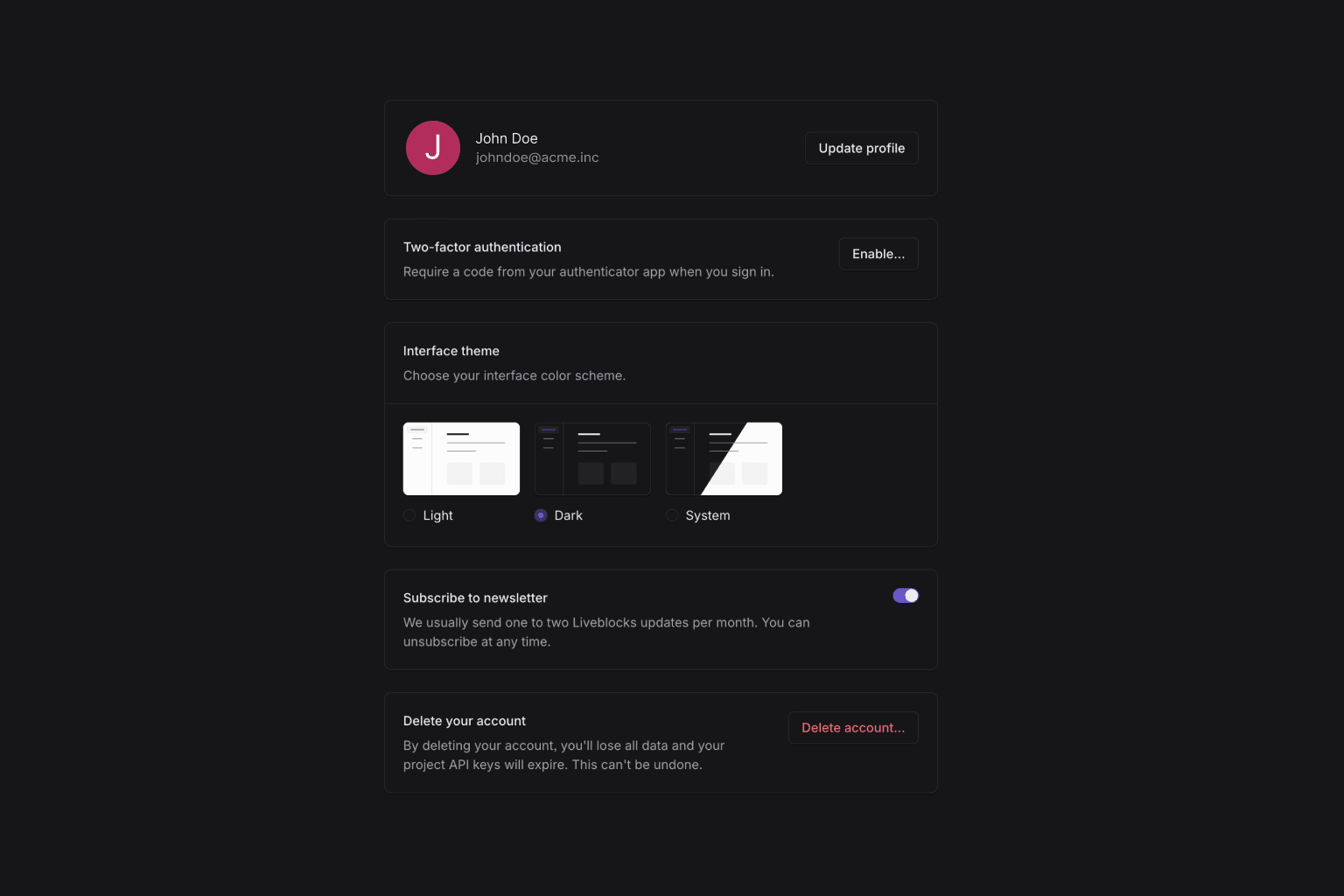
- In the Two-factor authentication section, click Enable.
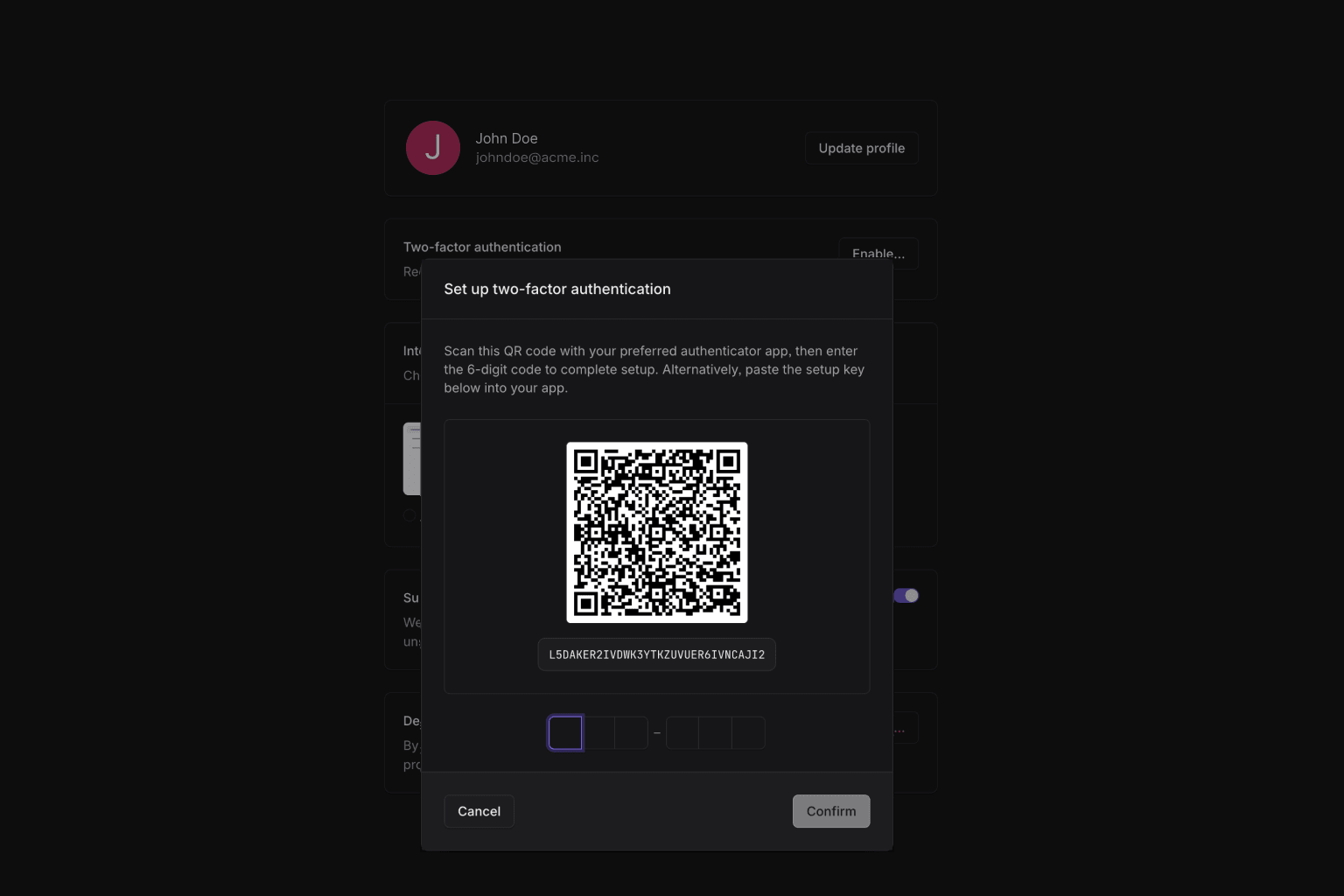
- In the setup modal, scan the QR code with your authenticator app, or copy the setup key and paste it into your app.
- Enter the 6-digit code from your authenticator app and click Confirm.
How to disable MFA for your account
- Go to Personal settings in the dashboard.
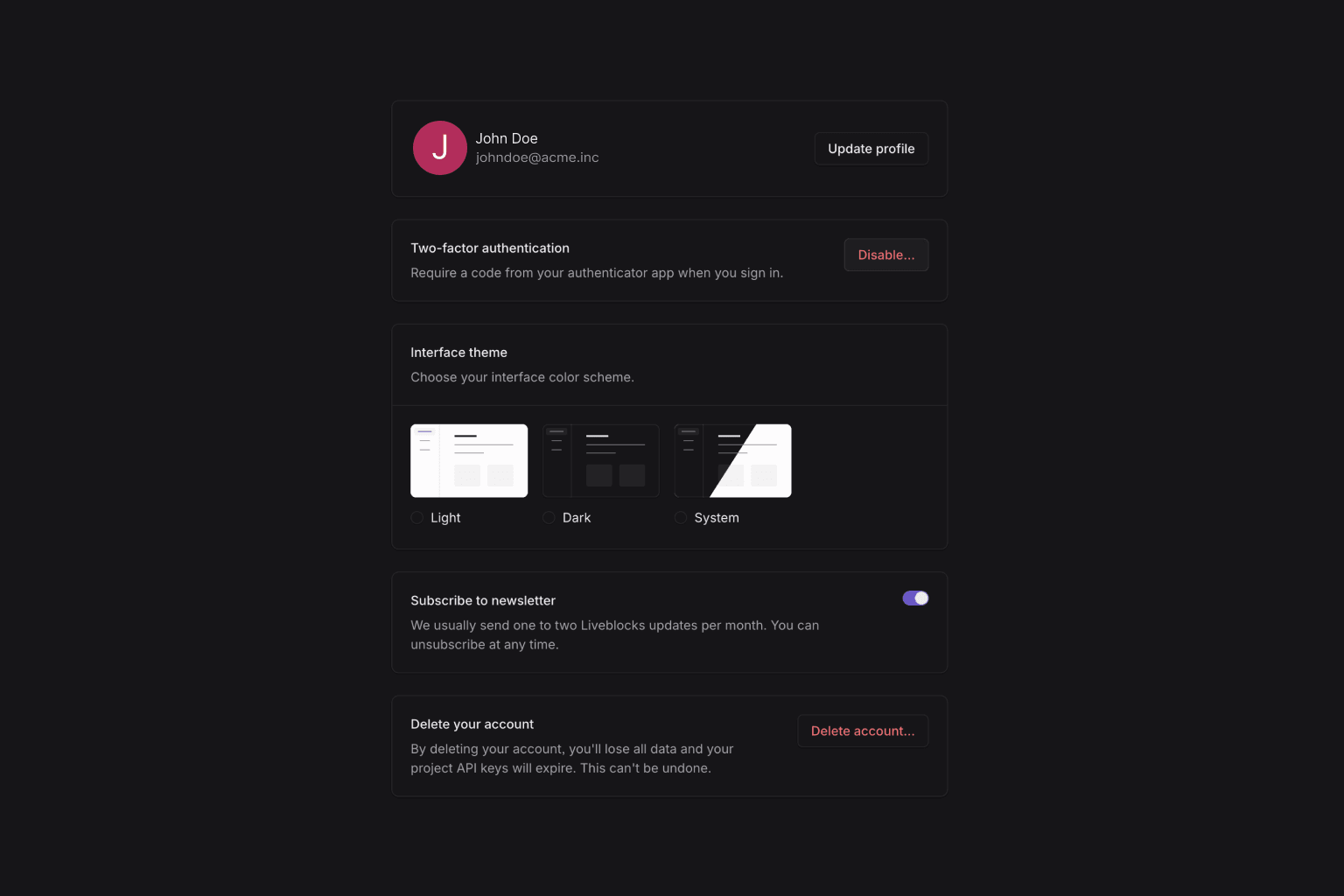
- In the Two-factor authentication section, click Disable.
- Enter your password and click Confirm.
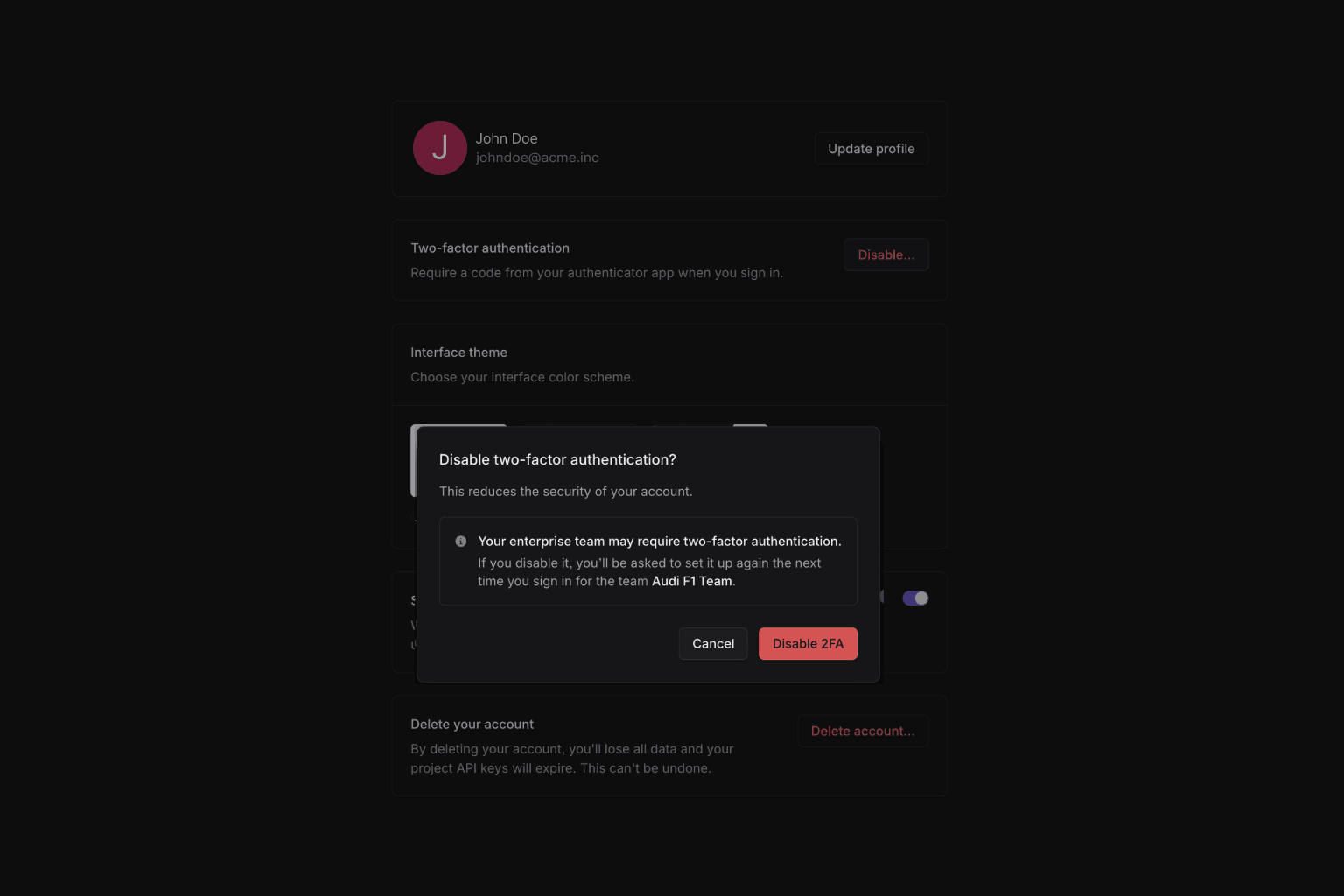
An alert will be prompted to confirm the action. In our current set up if you are a member of an enterprise team enforcing MFA for all its members, next time you sign in you will be prompted to enroll MFA again.
Enforce MFA for all team members
This feature is available as an add-on to Enterprise customers. Reach out to sales@liveblocks.io to enable it on your account.
When MFA is enforced at the team level, all members must have an authenticator app. They are prompted to enter a code when signing in to the dashboard.
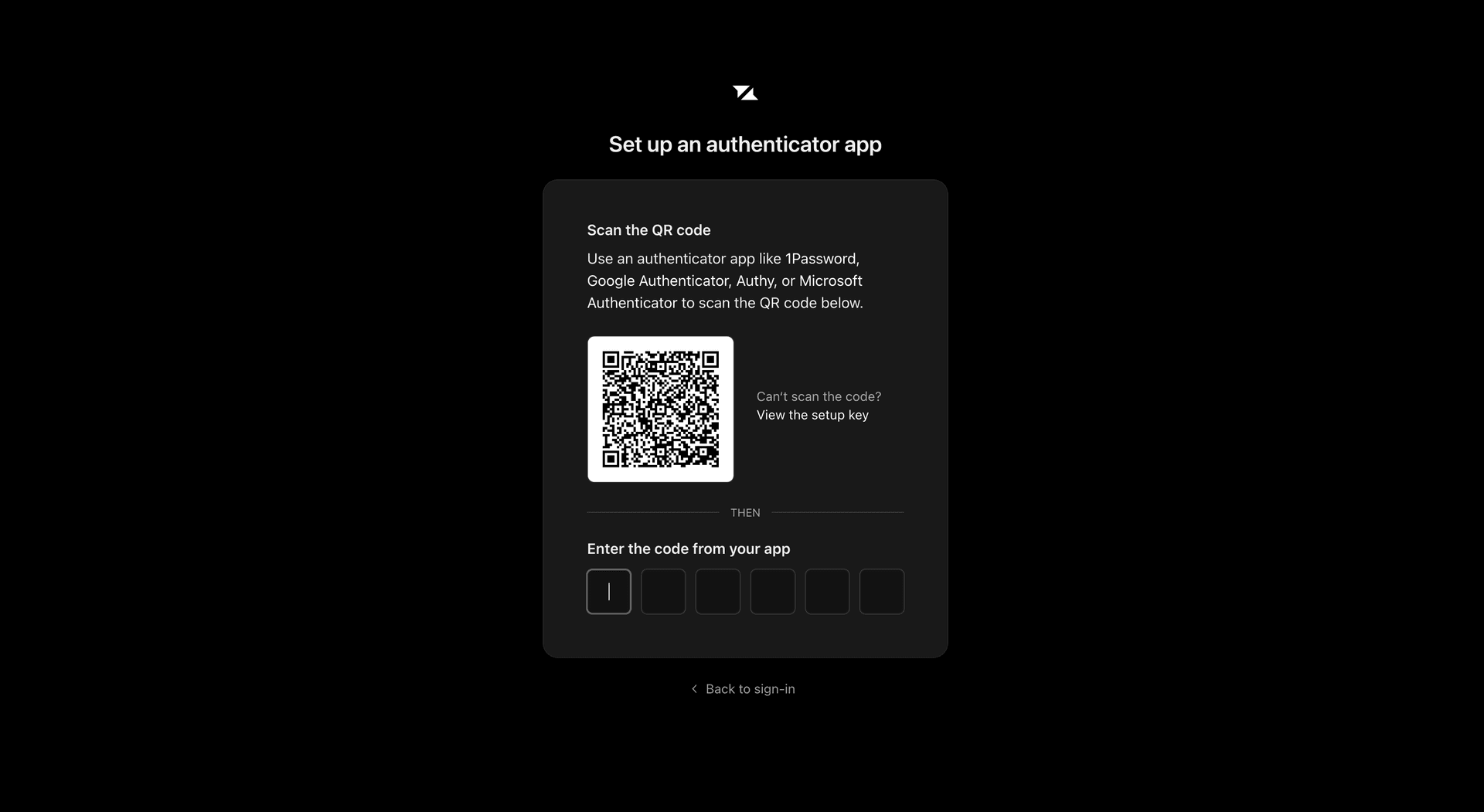
How to enable MFA enforcement
MFA enforcement is available as an add-on to Enterprise customers. Reach out to sales@liveblocks.io to enable it on your account. After it’s enabled, it works without configuration.